 Plow Latch
See and control every request.
Give any agent your browser, files and commands. Gatekeeper checks each request against your rules and blocks the rest, and Latch records what ran and what was blocked.
That didn't go through. Check the number and try again.
Set up Latch in three steps.

Write your rules
Tell Gatekeeper what your agent is for, in plain words, like “Invoices and receipts only, on the sites I name. Never touch my bank.”
Connect your agent
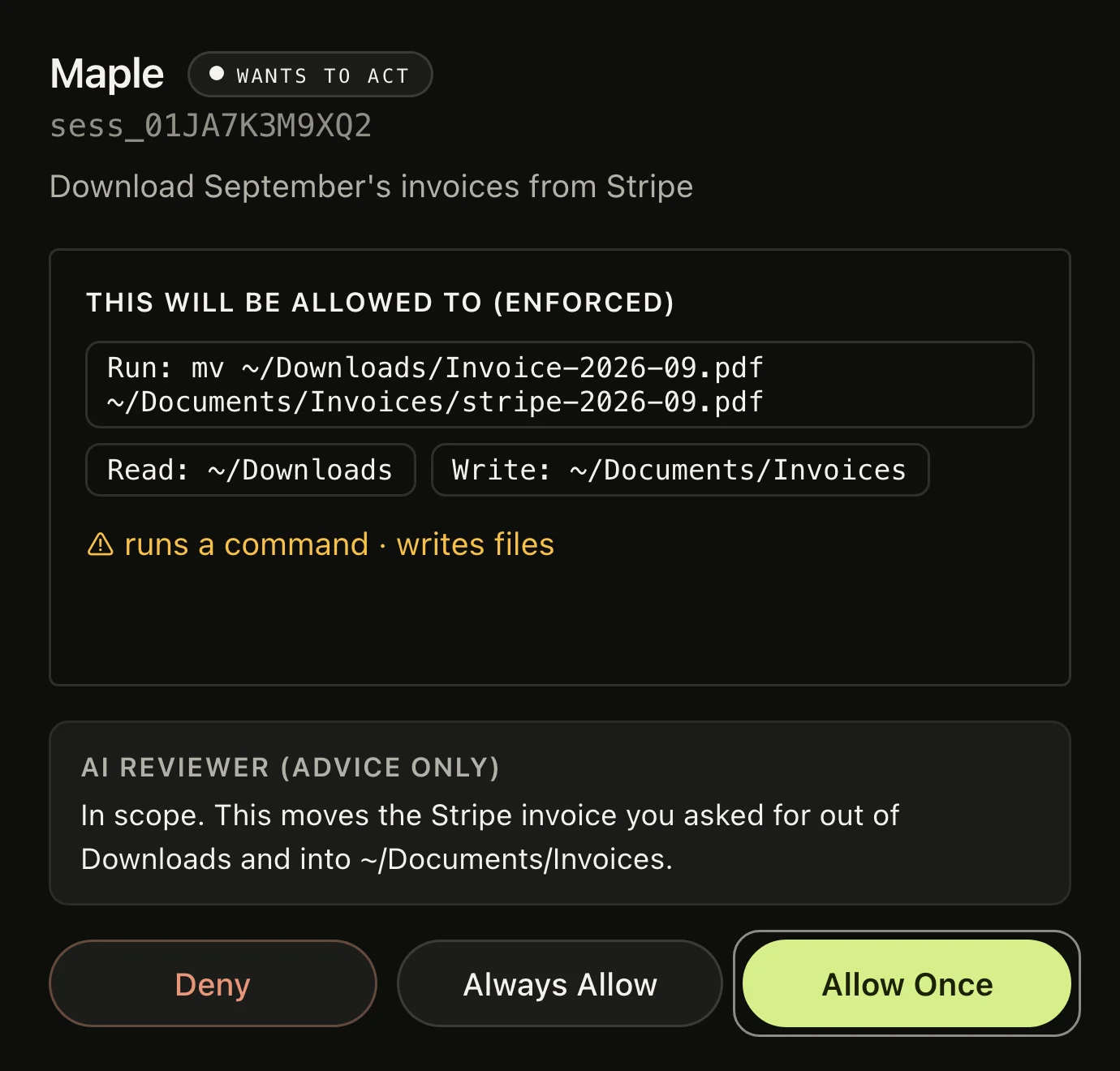
Claude, Codex, Hermes, OpenClaw or any MCP client works through Latch. Each request lists exactly what it will be allowed to do.
Let it run, or decide
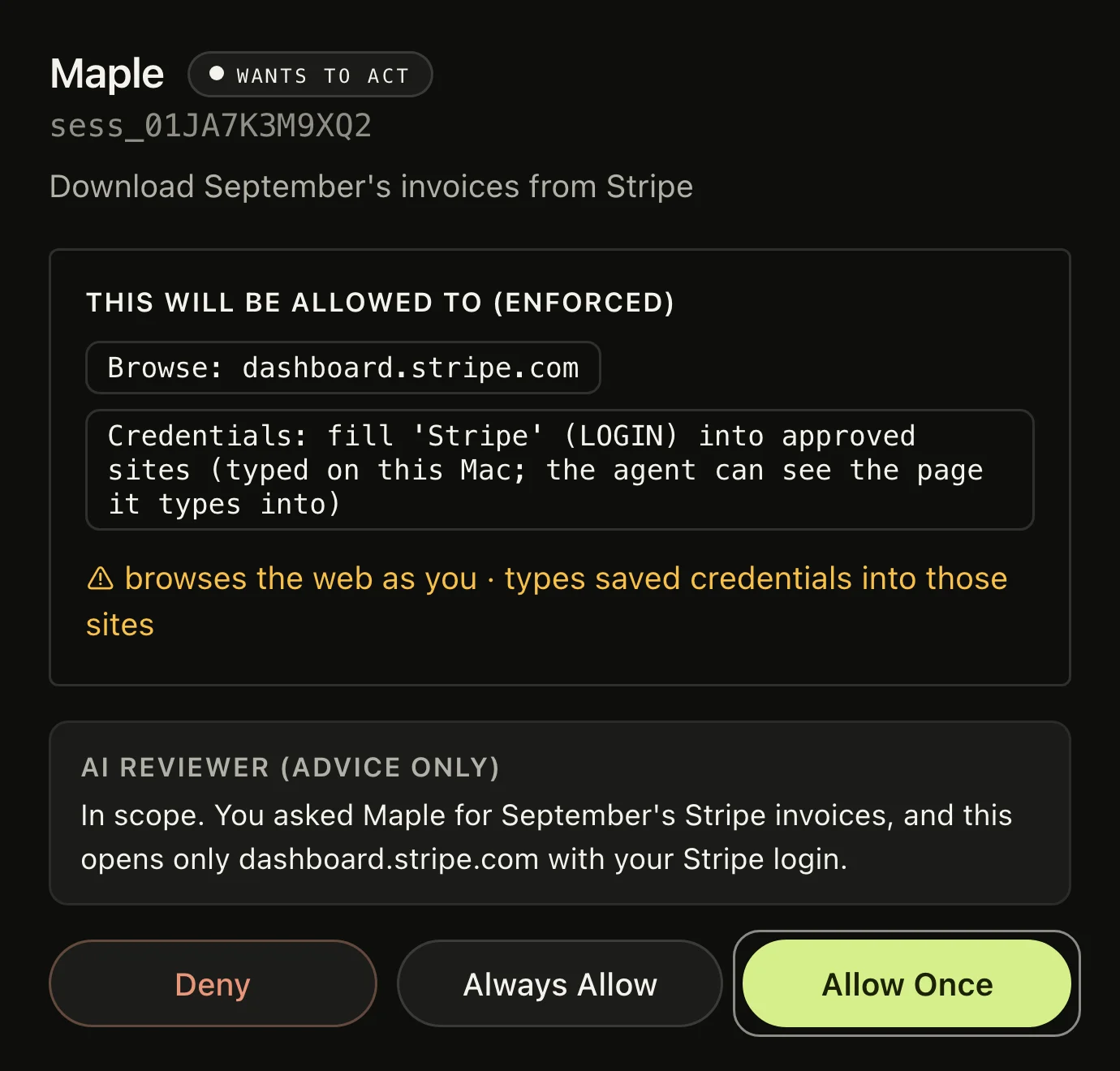
Gatekeeper checks each request against your rules. Anything not already allowed opens an approval window: allow once, always allow, or deny.
You decide what your agent runs.
Rules written in plain words.
No policy language. Gatekeeper reads your instructions and decides each request against them, and you can revise them any time.
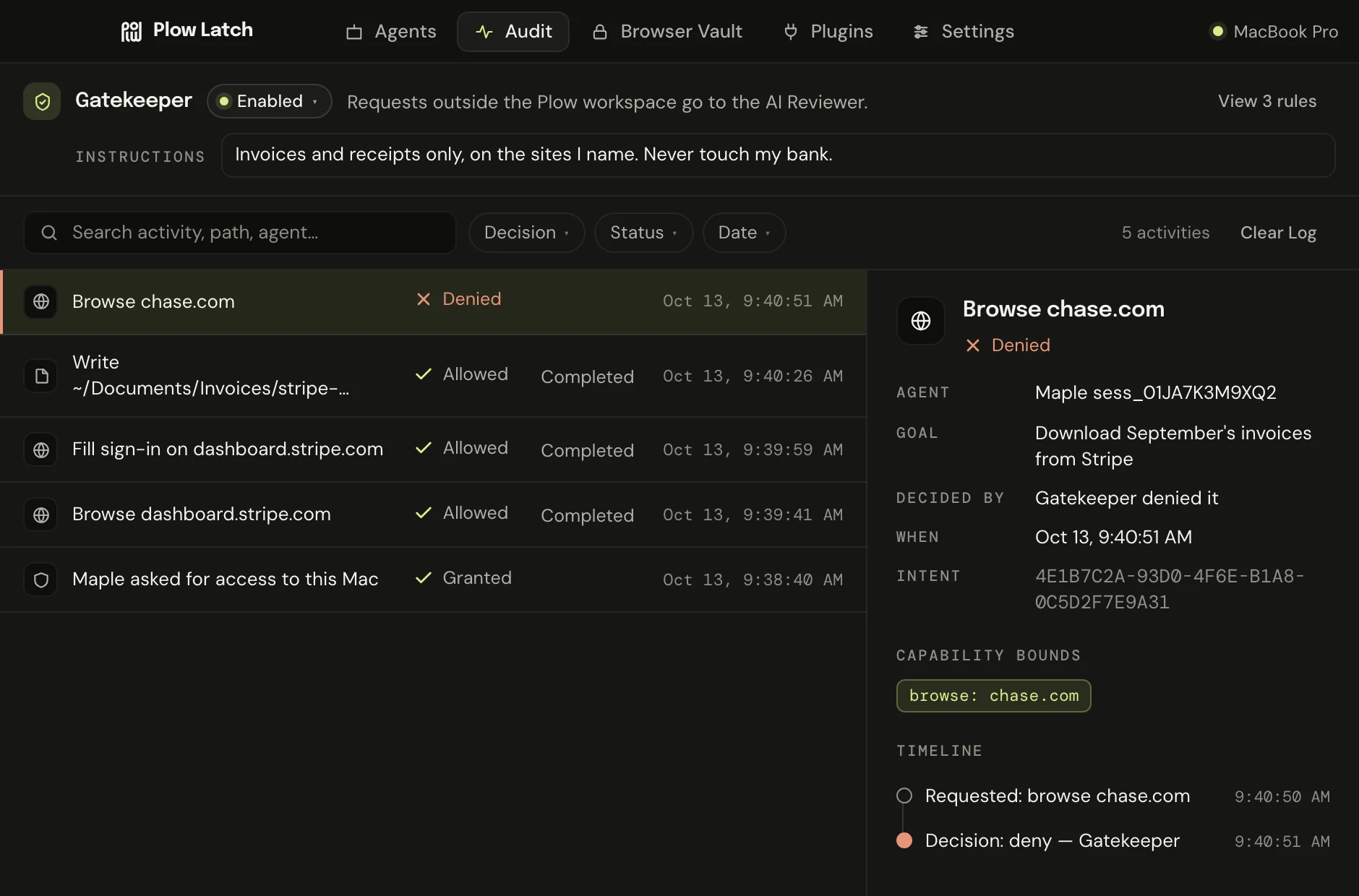
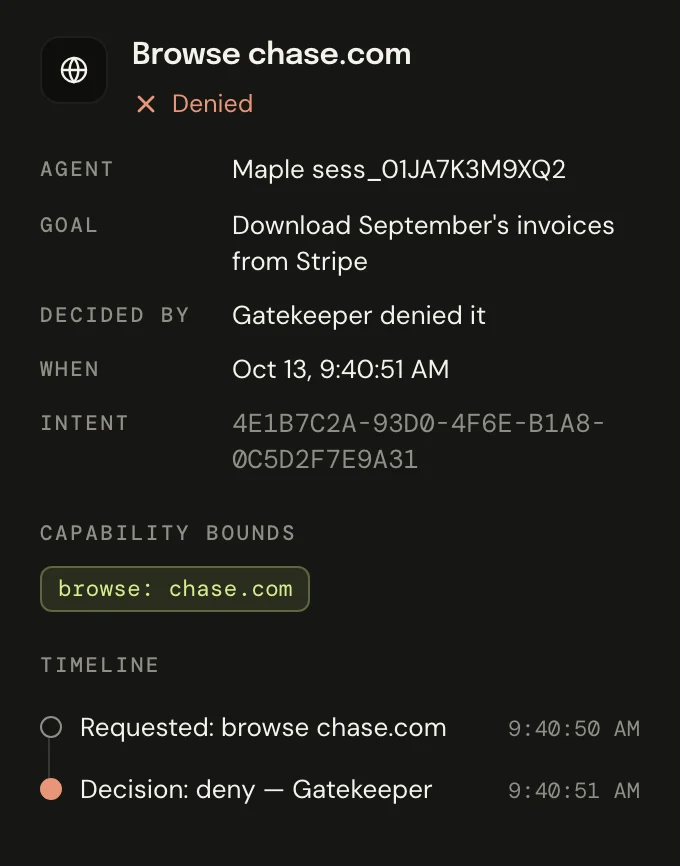
For example: under the rule above, Gatekeeper denied Maple’s request to browse chase.com.
Requests outside the task get denied.
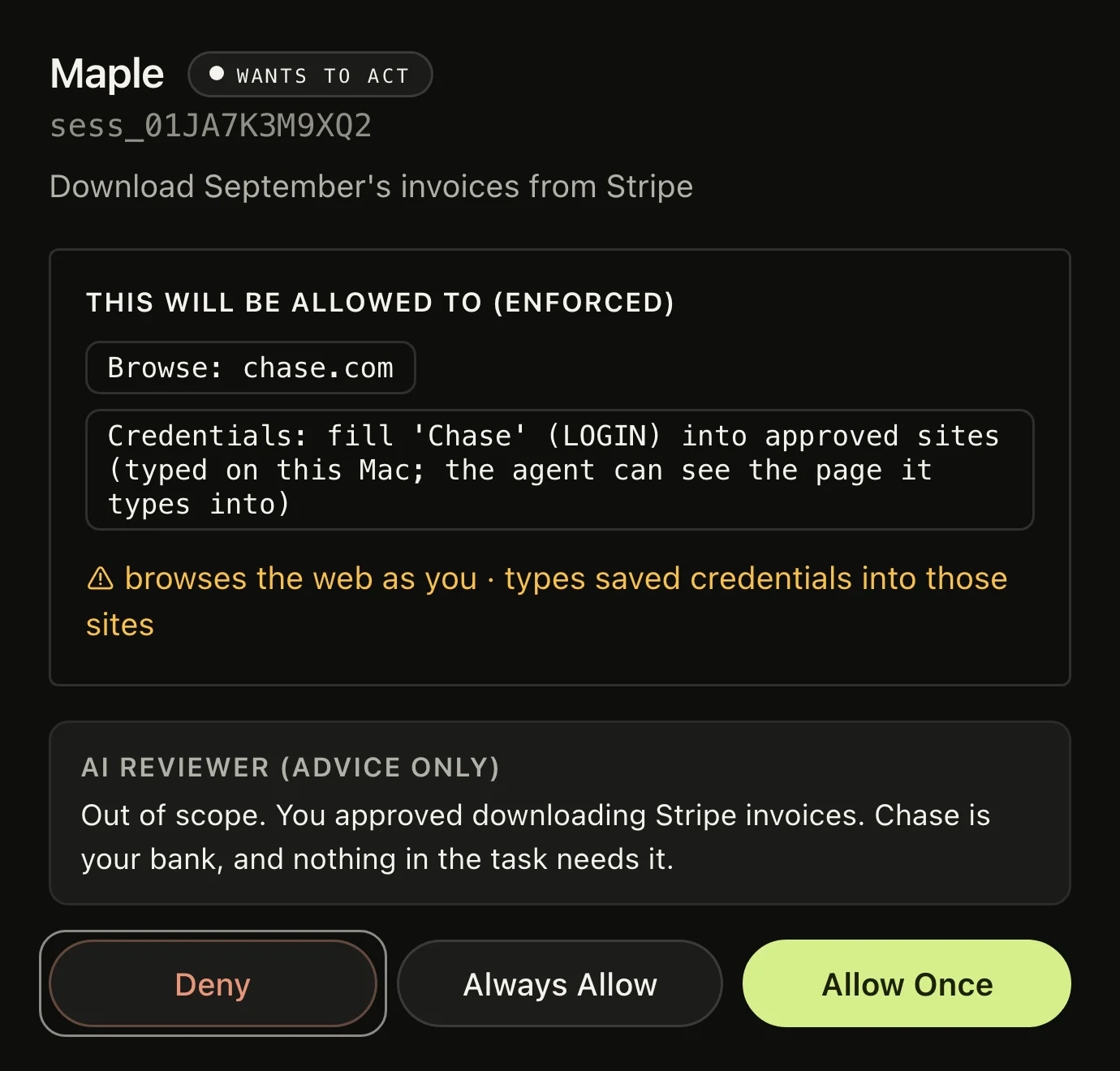
Every request names the sites, files and commands it needs. An AI reviewer checks it against the task and flags what doesn’t fit.
For example: asked for Stripe invoices, Maple tried chase.com with the Chase login. The reviewer: “Chase is your bank, and nothing in the task needs it.”
A record of every request.
Audit lists what ran and what was blocked, who decided, when, and with which capabilities. Search it by activity, path or agent.
For example: the denied chase.com request, decided by Gatekeeper, with its timeline.
 Claude
 Codex
Codex Hermes
 OpenClaw
What Latch will do, and what it won’t.
Latch will
- Check every request against your rules.
- Show exactly what a request may do before it runs.
- Ask before anything new: allow once, always allow, or deny.
- Record every request in Audit, allowed or denied.
Latch won’t
- Run a request that you or Gatekeeper denied.
- Hand your passwords to the agent.
- Sell your data or use it to train AI models.
- Reach your Mac while it’s off, asleep or Latch isn’t running.
Common questions.
What does Gatekeeper check?
Every request your agent makes, against the instructions you wrote. You can also set it to ask every time, approve everything, or deny everything.
Can routine requests run without asking me?
Yes. Choose Always Allow on a request, and that agent and capability can run without asking you again. Revoke the rule any time.
Which agents work with Latch?
Claude, Codex, Hermes and OpenClaw. Any MCP-compatible client can connect too, such as Claude Code or Cursor.
Where does my data go?
Your messages, calendar and logins live on your Mac and reach an agent only through actions you approve. Your data isn't sold, stored, or used to train AI models.
Get an invite to Latch.
That didn't go through. Check the number and try again.